This article will guide you through installing Claude Code from scratch, configuring your API Key, and integrating it with Wishmere, so you can get started with AI-assisted programming quickly.
Installation Prerequisites
Before installing Claude Code, ensure your environment meets the following requirements:
- Node.js 20+ — Claude Code runs on Node.js, with the LTS version recommended
- Anthropic API Key — Get your API Key from the Anthropic Console
- Git — Used for version control and project collaboration
Check your Node.js version:
node --version
# Should output v20.x.x or higher
Installation Steps
Global Installation
Install Claude Code globally using npm:
npm install -g @anthropic-ai/claude-code
Verify Installation
After installation, verify the setup was successful:
claude --version
# Should output claude-code/x.x.x
Initial Authentication
Run Claude Code and complete authentication:
claude
# First run will prompt for API Key or browser login
You can also set the API Key directly via environment variable:
export ANTHROPIC_API_KEY=sk-ant-xxxxx
Configuration Details
API Key Configuration
Claude Code supports multiple methods for configuring the API Key:
- Environment variable —
ANTHROPIC_API_KEY, recommended to set in.envfile or shell configuration - Interactive login — Browser OAuth login on first run
- Config file — Set in
~/.claude/config.json
Custom Base URL
If you’re using a proxy or custom endpoint, you can set the Base URL:
export ANTHROPIC_BASE_URL=https://your-proxy.example.com/anthropic
Model Selection
Claude Code defaults to claude-sonnet-4-20250514, and you can switch models via parameters:
claude --model claude-opus-4-20250514
Or configure the default model in CLAUDE.md:
# CLAUDE.md
model: claude-sonnet-4-20250514
Reasoning Effort Level
Control reasoning depth through --thinking-budget:
claude --thinking-budget high    # Deep reasoning, suitable for complex tasks
claude --thinking-budget medium  # Balanced mode (default)
claude --thinking-budget low     # Fast response, suitable for simple tasks
Integration with Wishmere
Auto Detection
Wishmere automatically detects installed Claude Code without requiring additional configuration.
Model Configuration
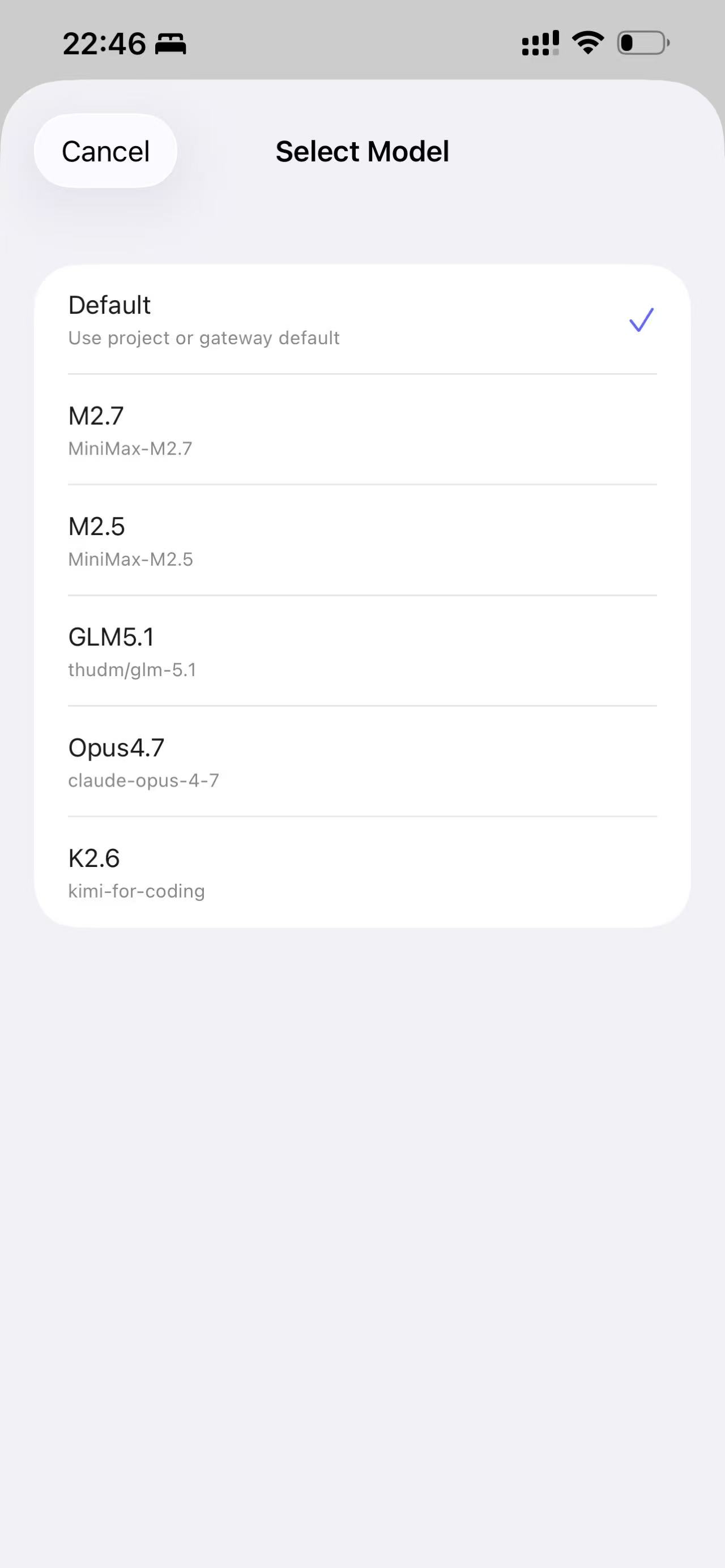
In Wishmere’s project settings, you can configure different models for various tasks:
- Code generation tasks — Use Sonnet (balanced speed and quality)
- Architecture design tasks — Use Opus (deep reasoning)
- Simple modification tasks — Use Haiku (fast response)
Runtime Model Switching
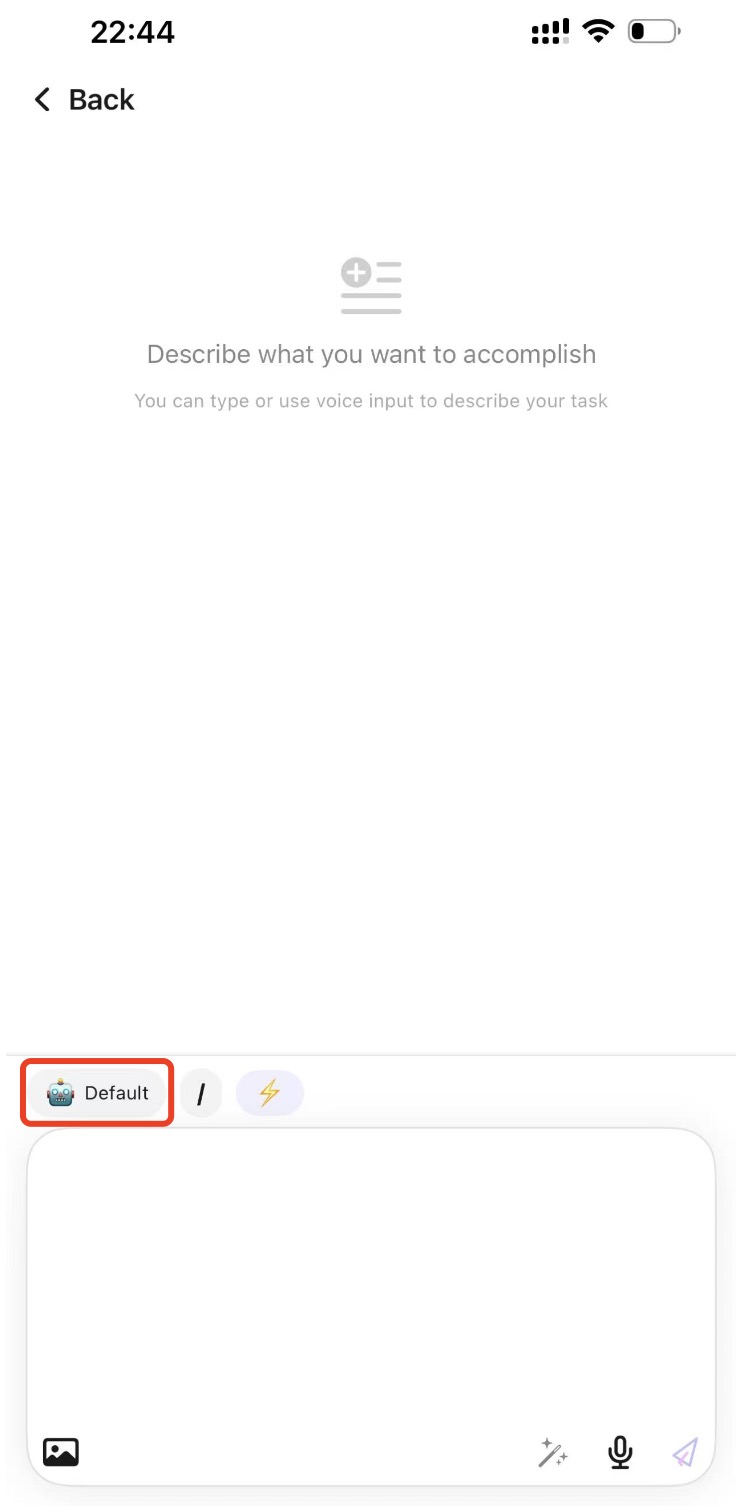
During conversation, you can quickly switch models through Wishmere’s command panel without restarting the session:
FAQ
1. Permission Error During Installation
If you encounter permission issues during global installation, use one of these methods:
# Method 1: Use sudo
sudo npm install -g @anthropic-ai/claude-code

# Method 2: Use nvm to manage Node.js (recommended)
nvm install 20
nvm use 20
npm install -g @anthropic-ai/claude-code
2. Invalid API Key
Confirm your API Key format is correct (starts with sk-ant-), and that your account has sufficient quota. You can view API Key status and usage in the Anthropic Console.
3. Context Window Insufficient
If working on large projects, Claude Code may report insufficient context window. Solutions:
- Use
.claudeignoreto exclude unnecessary files - Break large tasks into smaller ones
- Use
CLAUDE.mdto trim context
Next Steps
- 10 Common Claude Code Pitfalls and Solutions — Learn about frequent issues during usage
- Codex CLI Usage Guide — Compare with another AI programming tool
- Codex CLI Installation and Configuration Guide